
Structured type in Power Query
First things first!
This is how to create a list programmatically in Power Query.
From a blank query, just open the Advanced Editor and key in:
// A list is enclosed inside curly brackets, values are commas separated
let
    Source = { 1, 2, 3 }
in
    Source
// This is a valid list in Power Query
Source = { "John", 33, 75 }
in
SourceSee a list in the User Interface:
In the editor, the left Query pane shows a different icons for list:

The basics are here! you know how to create a list in M, and identify it in the user interface.
Use case: list from table function
Let’s breakdown an example to show how lists and table functions interact in Power Query:
let
    Source = Excel.Workbook(File.Contents("C:\...AdventureWorks.xlsx"), null, true),
    Employees_Table = Source{[Item="Employees",Kind="Table"]}[Data],

    // Step1 extract Employee table column names, output is a list
    Step1 = Table.ColumnNames (Employees_Table),
    // Step2 filters this list to keep columns starting with
    Step2 = List.Select (Step1 , each Text.StartsWith (_ , "B") ) ,
    // Step3 input a Manual list
    Step3 = { 1 , 2 } ,
    // Step4 append both lists: generates a list of list
    Step4 = List.Combine ( {{ Step2} , {Step3}} ),
    // Step5 "To Table" UI button, table records are list of list
    Step5 = Table.FromList(Step4, Splitter.SplitByNothing(), null, null, ExtraValues.Error),
    // Step6 expands our list of list
    Step6 = Table.ExpandListColumn(Step5, "Column1")
in
   Step6
In Step1, I use a table function. Surprisingly, this function outputs a list as a result…
Analysing M code and transformations, many table functions do generate lists. Both tables and lists are structured Power Query types.
In this query, unless we loaded a table and start with a table function, Step1 to 4 outputs are lists.
You can review this and observe the left Query pane icon.
We retrieve table outputs after filtering and appending in Step5 and 6.
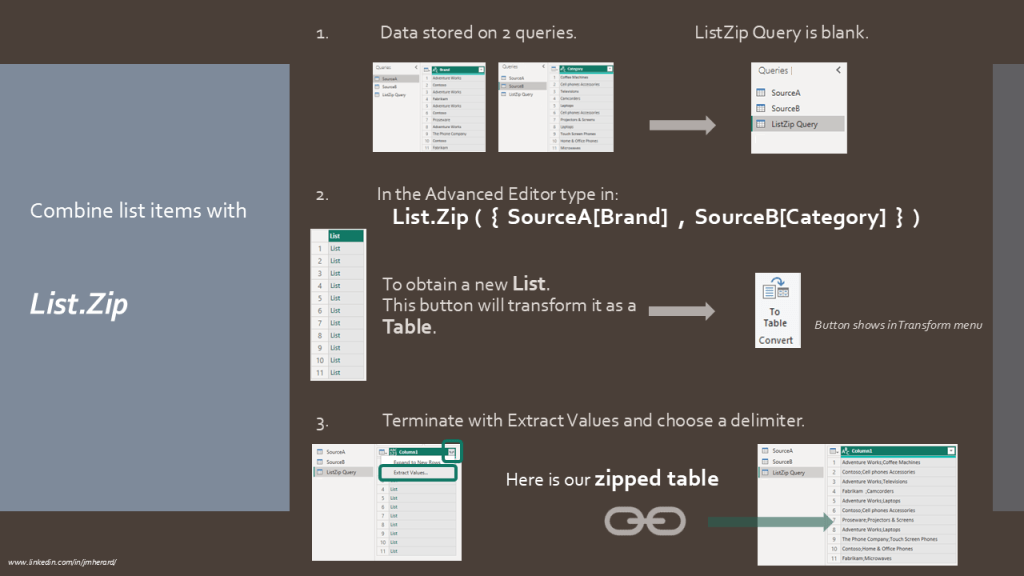
In this slideshow, I use 2 list expressions to:
- Merge data from 2 queries horizontally with List.Zip
- Union data from 2 queries vertically with List.Combine (also used in previous example)


This post is a mere introduction to the notion of primitive and structured types in Power Query.
Power Query proposes a choice of 70 List functions so do not hesitate to investigate!

 BI2020.blog
Leave a reply to Data cleaning with Lists – BI2020.blog Cancel reply