
A fine-tuned data preparation
In this post, I show you how to leverage Power Query Lists to perform an efficient and flexible data cleaning.
As introduced in a previous entry on this blog, Lists are an important data structure in the Power Query editor. Complex transformations that aren´t straightforward with standard tables can be achieved with lists.
Through a basic example, that can you can certainly achieve with a “replace” approach via the user interface, my aim is to share different list usages and perform an iteration over our lists.
Scenario
Pretty simple:
let’s rework and clean the left “Document Number” column and keep only numeric, text and “-” character as showed on “Cleaned Document Number”.
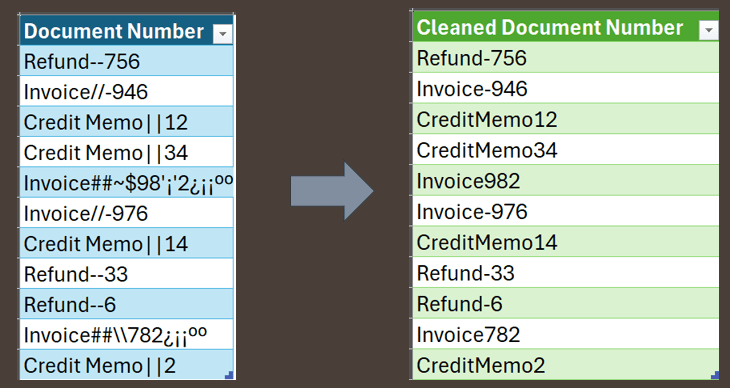
The M code that performs this transformation is showed and commented below:
let
    Source = Excel.CurrentWorkbook() {[Name="Table3"]}[Content],
    ChangedType = Table.TransformColumnTypes (Source, {{"Document Number", type text}} ),

    // Step1: convert table to list
    ConvertToList = Table.ToList ( ChangedType ),

    // Step2: 4 lists to isolate characters to keep
        SpeChar = {"-"},
        // 0 to 9, a to z upper+lower case
        Numbers = {"0" .. "9"},
        LettersUpperCase = { "A" .. "Z"},
        LettersLowerCase = { "a" .. "z"},

    // Step3: stacks Step2 lists
    StackLists = LettersUpperCase & Numbers & LettersLowerCase & SpeChar,

    // Step4: select step1 text, keep only Step2 characters
    SelectedCharacters = List.Transform ( ConvertToList , each Text.Select (_, StackLists )),

    // Step5: back to a table, rename column
    ResultTable = Table.FromList ( SelectedCharacters , Splitter.SplitByNothing(), {"Cleaned   Document Number"} )

in
    ResultTable
Query breakdown
- Step1 converts imported data, a 1 column table containing dirty data into a list.
- Step2 relies on lists again and generates series of characters to we need to keep in the final output.
Note we create a 1 item list and also sequences of characters with { “a” .. “z” }
As Power Query is case sensitive, generating 2 separated sequences is a must - Step3 uses “&” operator to stack Step2 lists
- Step4 contains the core of our data preparation: List.Transform iterates and applies Text.Select function over each item of our original list to keep only Step2 characters
- Step5 terminates the job, to format our output as table, the original format used in this example
I hope you found this short post useful and that it inspires you to confidently use lists in your everyday data transformations tasks.
 BI2020.blog
Leave a comment