
A perfect format for your M queries
In this post, I show how to options to use a proper code editor.
The “Advanced Editor” is the place showing the full code of our queries.
It can be accessed at any stage of your data preparation by clicking “Advanced Editor” button in Home menu (see 1 below):

Despite being a central component of Power Query, programmers agree several featuring are missing:
- No auto-completion feature: IntelliSense is not available there
- No code formatting available: indentation and line breaks will help you (and others) working on complex queries
- Display options (see 2 above) are limited comparing to a code editor
Install or use a code editor
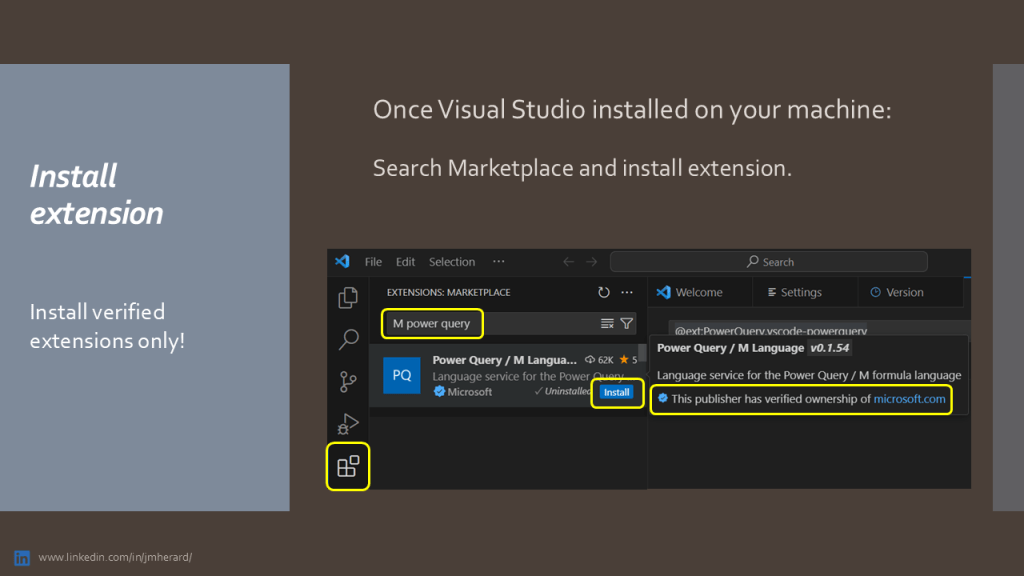
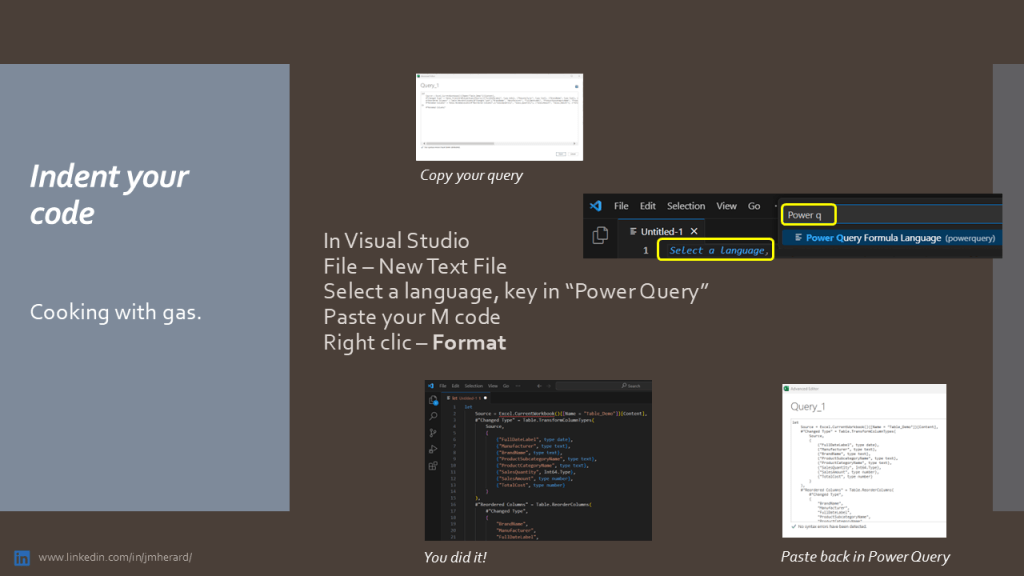
Below slide shows how to overpass this limit and install a code editor:


Looking for an online solution?
If you’re unsure about installing Visual Studio Code, just use the Power Query formatter online editor:

Once connected to the online formatter, follow those steps to format your code:
- Click the Formatter button (see above 1)
- Add a new document (see 2 above), empty this document, paste code copied from the Advanced Editor
- Click format (see 3 above)
The Formatter-Option drop down menu offers a lot of editing options!
I Hope this post will help you to gain in productivity and learn M language faster.
 BI2020.blog
Leave a comment