
Such a common transformation
I will start this blog by mentioning an important subtility between Excel and Power Query’s command.
We all initially think these commands behave the same way, but they do not.
Removing duplicates in Excel is case insensitive. That makes a great difference if you need to launch the same transformation in Power Query.
Let’s first examine the Applied Steps pane. Then, we can look at the Advanced Editor. This will help us figure out which M expression corresponds to the Remove Duplicates command in Power Query.
Right click 1 or several columns, and then apply Remove Duplicates:
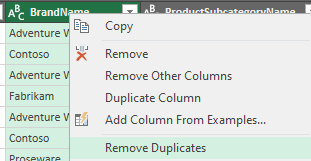
A quick look at the Advanced Editor, to read the next M expression:
#"Removed Duplicates" = Table.Distinct(#"Changed Type", {"BrandName"})All this seems to work fine, unless a skilled colleague informs you Table.Distinct is case sensitive… meaning in Power Query, “This text” is not the same that “this text”.
Applying a correct Remove Duplicates in Power Query, implies 2 steps before Table.Distinct.
See below example: Text.Trim and Text.Proper on the BrandName column are executed before Table.Distinct.
By doing so, we make sure that all the occurrences of the exact same text will be removed in Table.Distinct.
Table.TransformColumns(#"Changed Type",{{"BrandName", Text.Trim, type text}}),
Table.TransformColumns(#"Trimmed Text",{{"BrandName", Text.Proper, type text}}),
Table.Distinct(#"Capitalized Each Word", {"BrandName"})
If you need to override an expression case sensitivity, then you can use Comparer.OrdinalIgnoreCase
Table.Distinct( #"Changed Type" , {{"BrandName", Comparer.OrdinalIgnoreCase}})More in the 2 pager below:

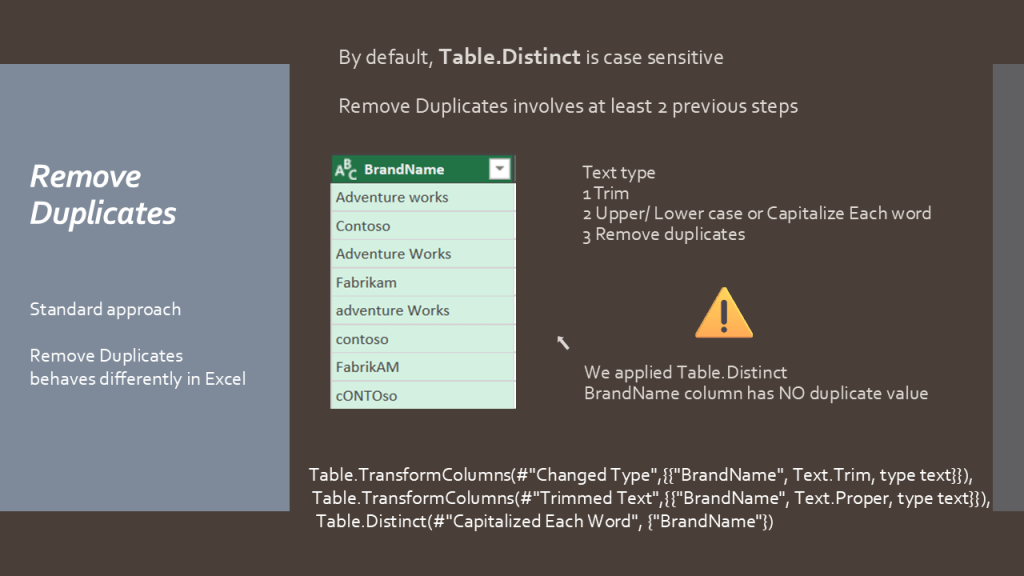

You are now aware of the earlier steps to apply to efficiently Remove Duplicates in Power Query.
Hope you enjoy the post.
 BI2020.blog
Leave a comment