
Table.Pivot, Table.Unpivot, Table.Transpose
Let’s examine first how to create a table in Power Query.
We can create tables programmatically, from a blank query, the code looks like:
let
    MyFirstTable =
    // Creates a 4 columns, 3 records table
    #table (
        {"CustomerId", "Gender", "City", "Surname"},
        { {1, "M", "Riga", "Grant"},
          {2, "F", "Washington", "Parks"},
          {3, "M", "Paris", "Tyson"}
        } )
in
    MyFirstTable
Why Tables are an important in Power Query?
Power Query engine works with primitive AND structured types.
Primitive types are numbers, booleans and text, at a granular level.
In contrast, structured types are used to store multiple values in an organized element. Power Query materializes them in Tables, Records or Lists.
Once the data is loaded in the editor, most transformations made afterwards rely on table functions.
In this example, we load a .csv file and apply a series of 4 transformations with the user interface.
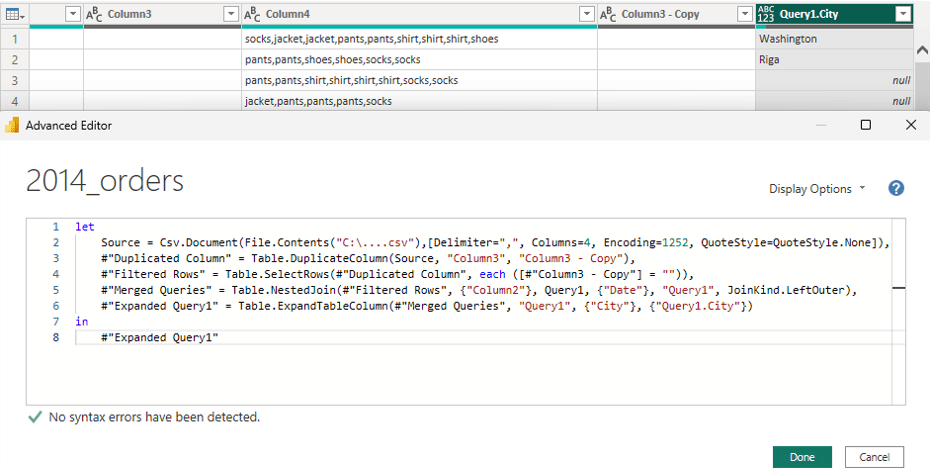
All those transformations belong to the incredibly rich “Table.” function list.
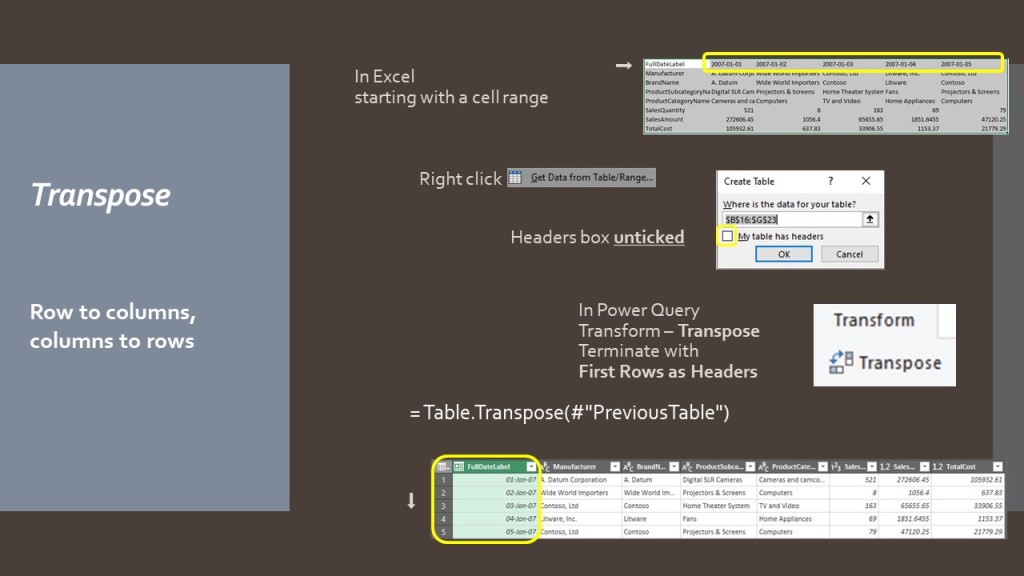
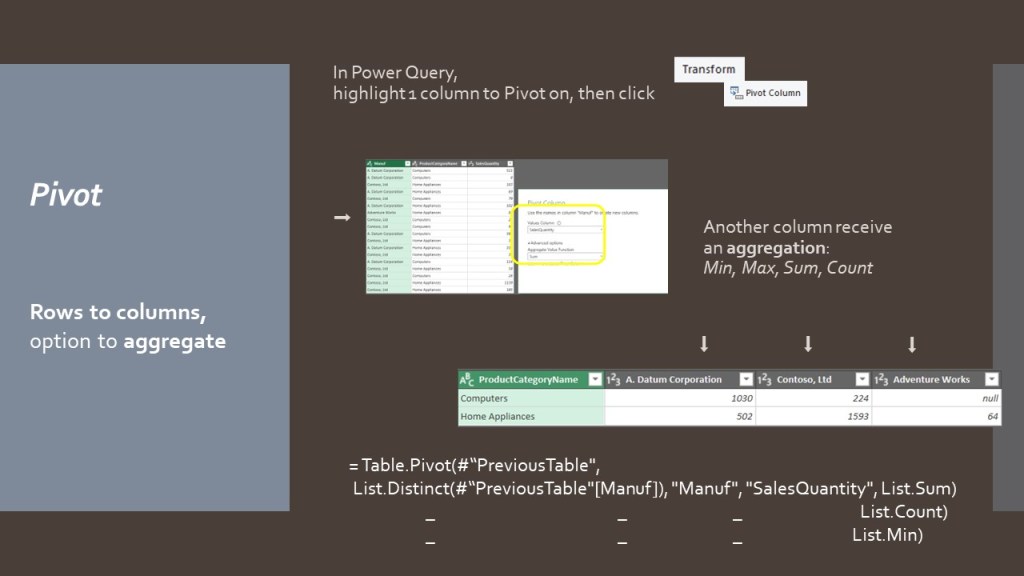
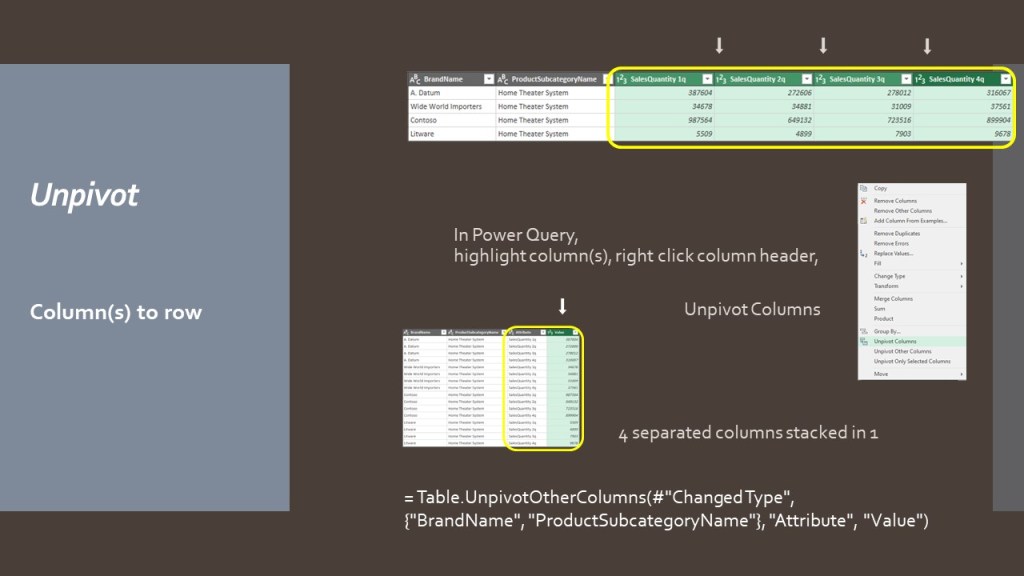
In below slide, I show you how to start with 3 basic table functions:
- Table.Pivot
- Table.Unpivot
- Table.Transpose

Bonus tip
3 super useful table functions to practice on your projects:
- Table.RowCount & Table.ColumnCount
- Table.Distinct
- Table.AddColumn
I often start and finish my queries with Table.Profile or Table.Schema, to retrieve information on my datasets.
According to my observations, Table.Profile provides a more performant answer. Though less detailed, it is more efficient than “profiling on entire dataset” presented in this blog post.
Keep the 100+ table functions list opened in your browser to explore Power Query capabilities!
 BI2020.blog
Leave a comment