
Document your activity

Programming is a challenging and detail-oriented discipline.
Working with Power Query and the M language are no exceptions to the rule and demand a high level of precision.
Non-programmers are familiar with a non-commenting or very relaxed approach.
They often view adding comments to their code as a waste of time and a redundant activity. Nonetheless adopting the practice of commenting code is highly beneficial.
Comments not only enhance understanding and documentation but also proves invaluable for current or future code reviews.
This works, but I can’t remember how
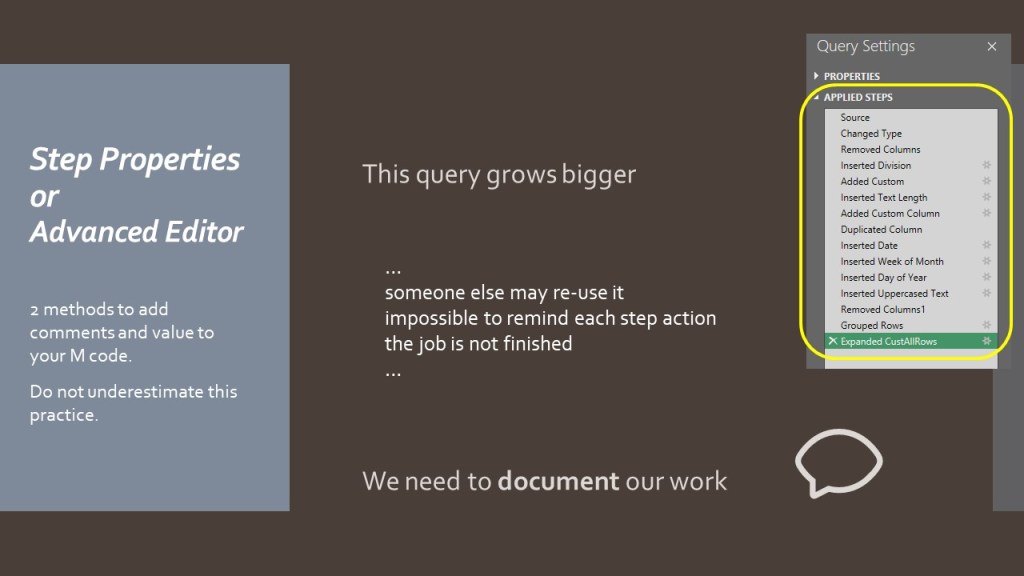
As the projects grow in size or complexity, the “Applied Steps” pane becomes cluttered.
This clutter makes it easy to lose track of applied transformations.
Developing the habit of commenting and documenting your steps will save you time when reviewing queries.
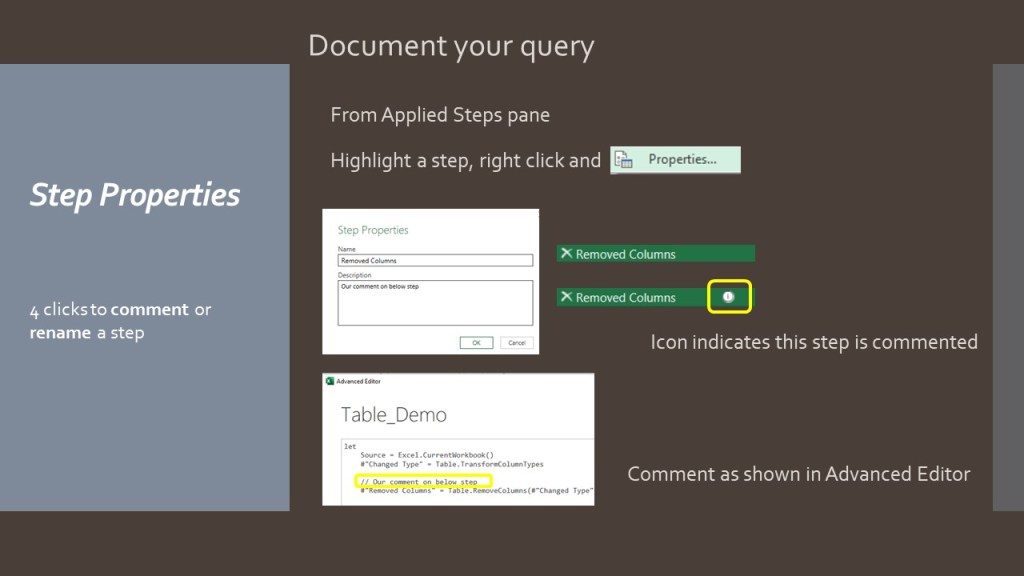
This slide shows how to efficiently rename or comment on a step from the user interface.
It also illustrates how comments are displayed in the “Advanced Code Editor”.

No excuses, just comment your queries like a pro!
Recap on how to add comments to your queries in the Advanced Editor – and not in the formula bar:
// Single line comments, showed in red in BI2020 blog
#"Added Custom" = Table.AddColumn(Customers_Table, "Custom", each Text.PadStart ( [FirstName] , 10 ))
/* This is a
Multiple line comments
#"Added Custom1" = Table.AddColumn(Customers_Table, "Custom", each Text.PadStart ( [LastName] , 6 ))
This step was not needed
*/
Alternatively, from the Applied Steps window:
right click a step, click Properties and include your comment in the Description box.
Let´s end this blog with an official documentation link and the indispensable Power Query formatter by mogular.
I also posted an article dedicated to code editors in this blog.
 BI2020.blog
Leave a comment