
Think columnar
Fundamentals
In Power Query and Power BI, it is not possible to individually and manually select a cell.
This is so because both tools use the same columnar database as a storage engine to guarantee optimal compression and data querying. This columnar approach obliges us to apply data types to entire columns.
Before we get into details, we must mention that data type and data format serve different purposes.
Data format relates to how data is presented whereas data type refers to a data classification inside the columnar database.
Spreadsheet users are often surprised -not to say disturbed- by strict columnar characteristics.
Adopting the columnar mindset to handle data types accurately can be frustrating.
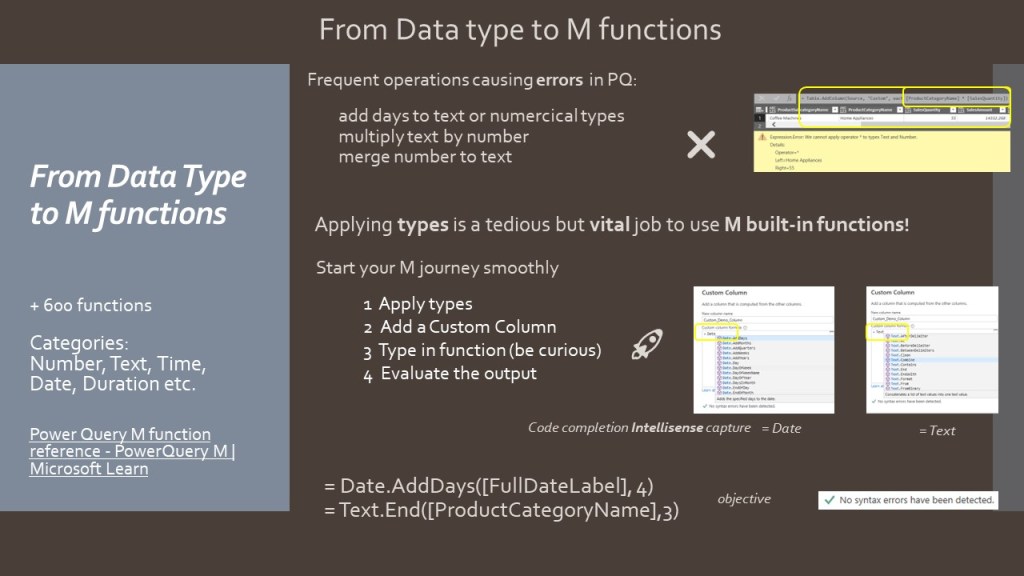
When Power Query generates error message, do not panic. Instead, review your logic and think about the columns and the data types involved in the transformation.
Hands on data types
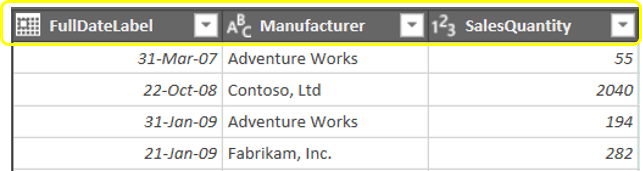
In the user interface, you define and assign a data type to a column by clicking the left icon in the column header:
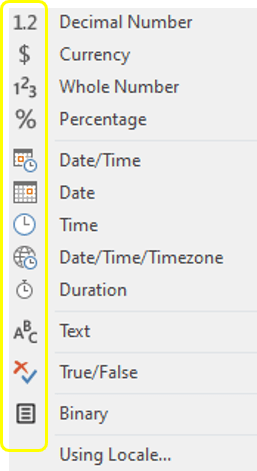
You can review the formula bar to read the M code behind a data type transformation:
Table.TransformColumnTypes(
  #"Renamed Columns",
  {{"Sales_Amount", Currency.Type}, {"Total_Cost", Currency.Type}}
)
In this example, Sales_Amount and Total_Cost columns are transformed to a Currency data type. In the code snippet, we have no information on their previous data type.
Data type challenges everywhere
To address data quality and data preparation steps, keep in mind the columnar logic prevents you from:
non exhaustive list
- Concatenating cells with a different type
- Changing a Date type column to a Currency type column
- Changing a Decimal number type column to Duration type column
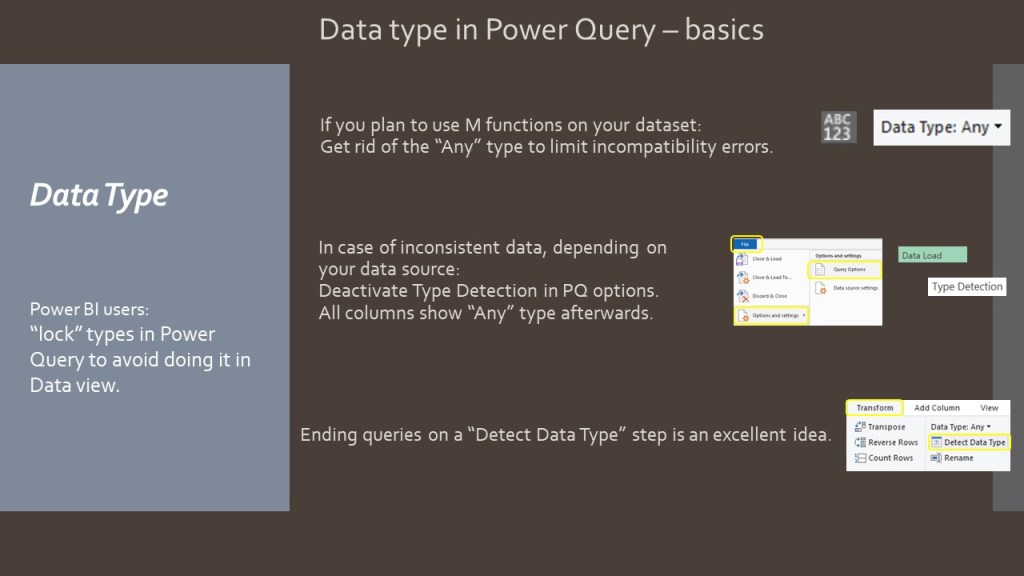
In Power Query, it is considered good practice to “Detect Data Type” at the very end of your data preparation.
The “later, better” moto will help you to:
- Avoid mismatch errors
- Maintain a performant query and data integrity
Remember to select and click columns headers to apply “Detect Data Type” on wished columns.
Use Ctrl and/or Shift keys to make your selection.
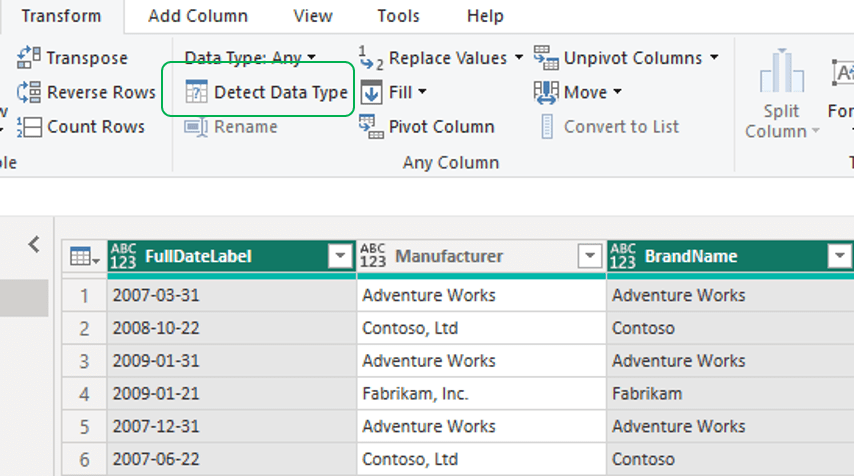
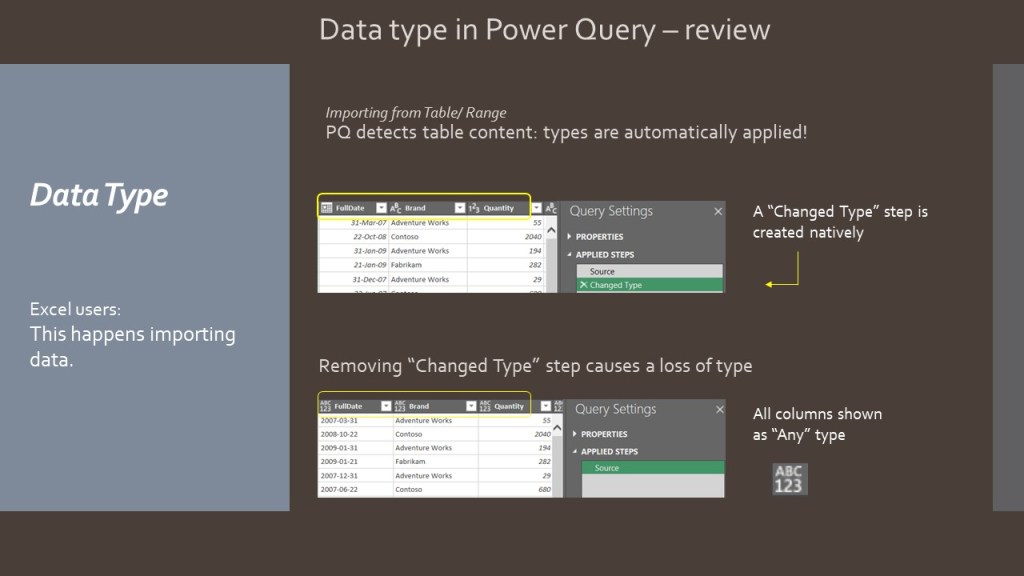
Finally, once you hit “Detect Data Type” button, notice how Power Query created a “Change Type” step in the “Applied Steps” window.
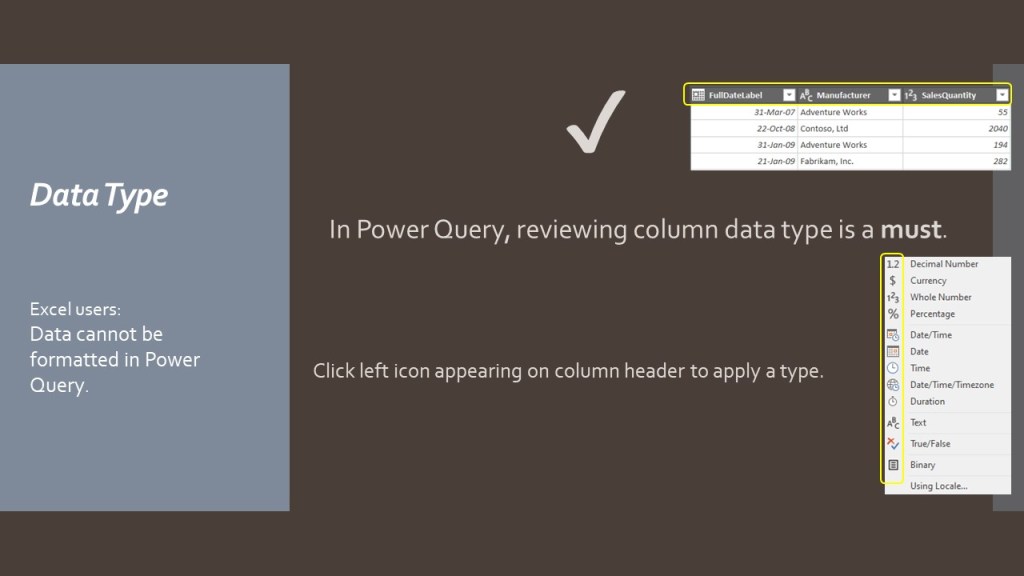
A recap’ on this data types intro. is available in below slides:

Dig further into this topic with Power Query data type conversion matrix (be patient and scroll until the bottom of the page!)
You can also review this link to learn more about M language types.
 BI2020.blog
Leave a comment